WC is reader-supported. As an Amazon Associate, we earn from qualifying purchases at no extra cost to you. Prices and availability can change, so always check the latest price on Amazon.
Last updated: 13 November 2026
Learning how to set up an Echo Dot takes about ten minutes, and it’s one of the most common jobs on Christmas morning in UK homes. All you need is a phone, your Wi-Fi password and an Amazon account. This guide walks you through each step in plain English, covers the privacy settings worth changing on day one, explains what to do if the light ring gets stuck on orange, and shows how to add a video doorbell and a streaming stick to build a simple Alexa smart home. Our product suggestions are based on Amazon UK best-seller charts, manufacturer specs and patterns in verified customer reviews.
Quick picks
- Best first smart speaker: Echo Dot (5th Gen)
- Best Alexa add-on for the front door: Ring Battery Video Doorbell 2K
- Best Alexa add-on for the TV: Amazon Fire TV Stick 4K Plus
| Product | Best for | Key specs |
|---|---|---|
| Echo Dot (5th Gen) | Starting an Alexa setup | Alexa built in, mic-off button, temperature sensor, tap gestures |
| Ring Battery Video Doorbell 2K | Doorbell announcements through Alexa | 2K video, wire-free fitting, two-way talk |
| Fire TV Stick 4K Plus | Voice control for the TV | 4K, Dolby Vision, HDR10+, Wi-Fi 6, Alexa Voice Remote |
Before you start: what you need
- A smartphone or tablet with the free Amazon Alexa app installed from the App Store or Google Play.
- Your Wi-Fi name and password. Setup happens in the app, so you’ll need to type it in.
- An Amazon account. A free account works. Prime isn’t required to set up or use an Echo Dot, although some extras, such as certain music services, need a subscription.
- A socket in the right spot. The Echo Dot runs from the power adapter in the box rather than a battery.
If you’re giving an Echo Dot as a present, tick the gift option when you order it on Amazon. Devices bought on your own account can arrive linked to it, which is handy for you but not for the person unwrapping it.
How to set up an Echo Dot: 7 steps
1. Pick a good spot
Put the Echo Dot somewhere central in the room, at roughly head height when you’re sitting, and away from the TV speaker, the kettle and windows. A clear spot on a shelf or worktop helps the microphones hear you and gives better sound than tucking it behind objects.
2. Plug it in
Use the power adapter that came in the box. The light ring will glow blue while it starts up and then turn orange, which means it’s in setup mode and ready to pair. Alexa will usually tell you to finish setting up in the app.
3. Add the device in the Alexa app
Open the Alexa app and sign in with your Amazon account. It may spot the new Echo Dot straight away. If not, go to Devices, tap the plus icon, choose Add Device, then Amazon Echo and Echo Dot, and follow the prompts. Allow the app to use Bluetooth and location when asked, as it needs them to find the speaker. Amazon updates the app regularly, so menu names can shift slightly.
4. Connect it to your Wi-Fi
Choose your home network and enter the password. When the connection works, the light ring turns off and Alexa confirms she’s ready. If your router broadcasts separate 2.4GHz and 5GHz networks, try the 2.4GHz one if the first attempt fails.
5. Personalise the basics
In the device settings, check the location so weather and local information are right, give the speaker a room name such as Kitchen, and link the music service you use. Setting up Voice ID helps Alexa recognise who’s speaking for things like personal reminders and calendars. If someone else in the house shares the name Alexa, you can change the wake word.
6. Check your privacy settings
The button with a crossed-out microphone turns the mics off, and the light ring glows red while they’re off. In the app, the Alexa Privacy section lets you review and delete voice recordings and choose how long they’re kept. Spend two minutes here on day one, especially if you’re setting the speaker up for someone else.
7. Test it and set up a routine
Try “Alexa, what’s the weather today?”, “Alexa, set a timer for ten minutes” or “Alexa, play Radio 2”. Then create one routine in the app, for example a morning routine that reads the weather and the news when you say “Alexa, good morning”. Routines are where an Echo Dot starts to feel genuinely useful.
Echo Dot stuck on orange? Quick fixes
- Restart everything: unplug the Echo Dot for 20 seconds, close and reopen the Alexa app and try again.
- Move closer to the router for setup, then move the speaker back once it’s connected.
- Check the Wi-Fi password, including capital letters, and try the 2.4GHz network if you have a choice.
- Update the Alexa app and your phone’s software.
- Factory reset as a last resort: on the 5th Gen, press and hold the Action button (the one with a dot) for about 20 seconds until the light ring flashes orange, then set it up again.
What about Alexa+?
Amazon’s more conversational, AI-powered assistant, Alexa+, arrived in the UK in March 2026 through an Early Access programme, the first launch outside North America. Availability and pricing depend on your device and account, so check the Alexa app for the current offer. Everything in this guide works with standard Alexa either way.
Kit for a simple Alexa smart home
Echo Dot (5th Gen): best first smart speaker
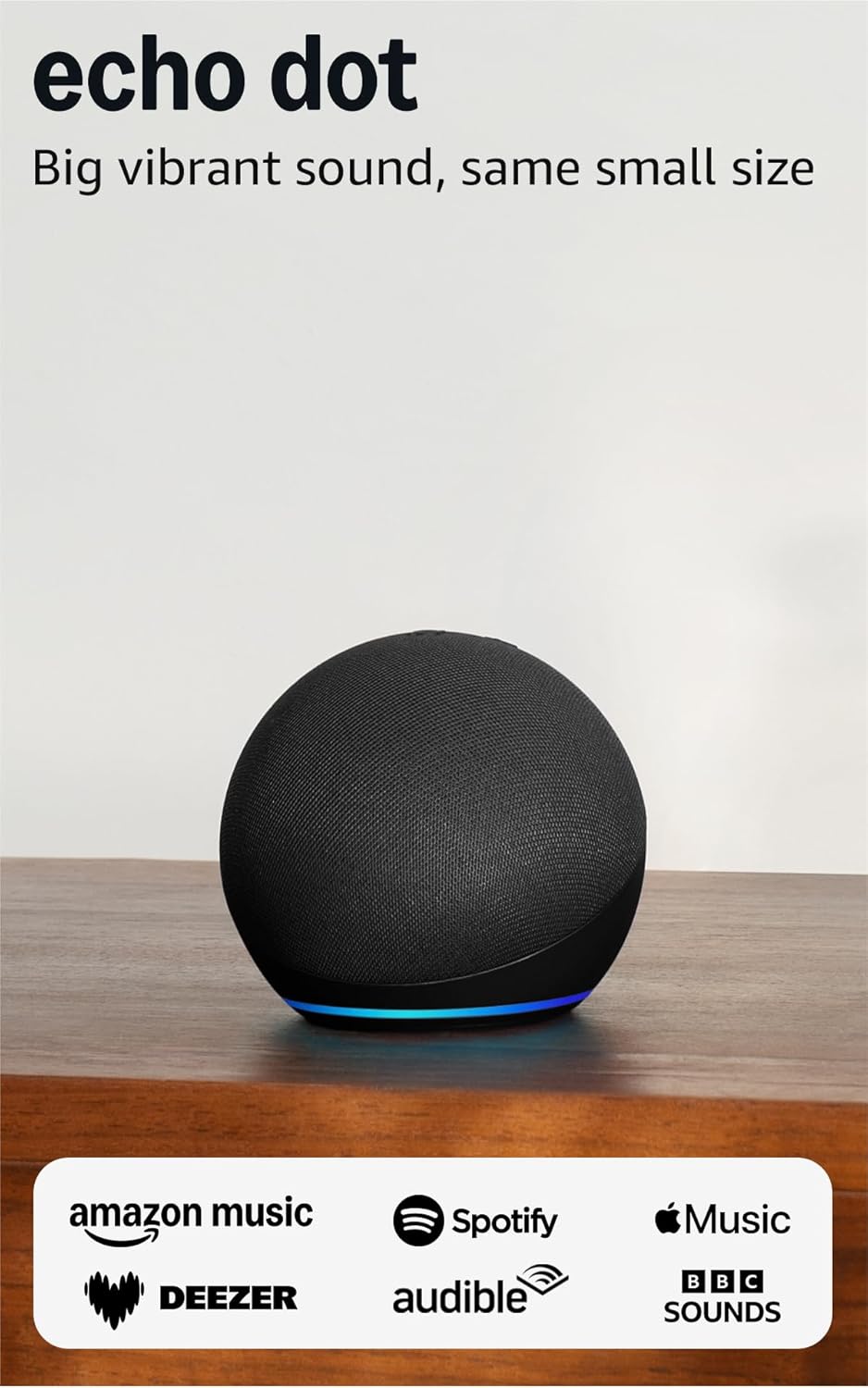
The 5th Gen Echo Dot is the easiest way into Alexa: compact, quick to set up and clearer-sounding than earlier Dots. It has a built-in temperature sensor for routines, and you can tap the top to snooze an alarm or pause music.
Pros
- Simple ten-minute setup in the Alexa app
- Mic-off button for privacy
- Small enough for a kitchen, bedside or office
Cons
- Limited bass for serious music listening, as many reviewers note
- No screen, so it can’t show doorbell video
- No 3.5mm audio-out socket
Best for: a first smart speaker, or adding Alexa to another room.
Skip it if: music quality matters most to you. A larger speaker will sound fuller.
Ring Battery Video Doorbell 2K: best Alexa add-on for the front door
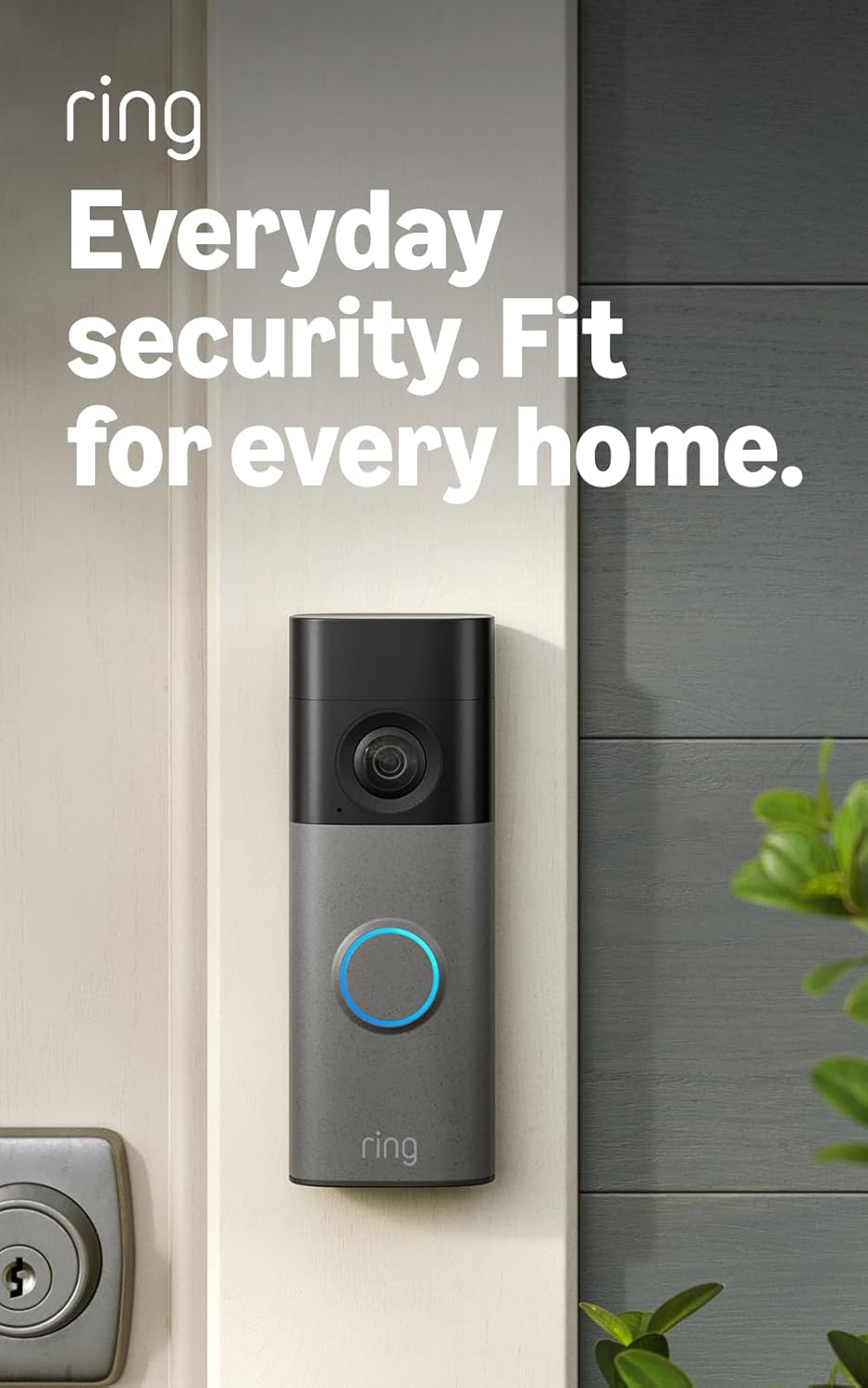
Once the Ring doorbell is set up in the Ring app, link your Ring account in the Alexa app and turn on doorbell announcements, so your Echo Dot tells you when someone’s at the door. The newest battery model records in 2K and fits without any doorbell wiring.
Pros
- Doorbell announcements on your Echo speakers
- Wire-free fitting, ideal for renters
- Two-way talk from your phone
Cons
- Saving recordings needs a paid Ring Home plan
- Battery needs recharging, more often at busy doors
- Some reviewers mention a short delay before live view loads
Best for: anyone who misses deliveries or wants to hear the doorbell anywhere in the house.
Skip it if: you don’t want an ongoing subscription.
Amazon Fire TV Stick 4K Plus: best Alexa add-on for the TV
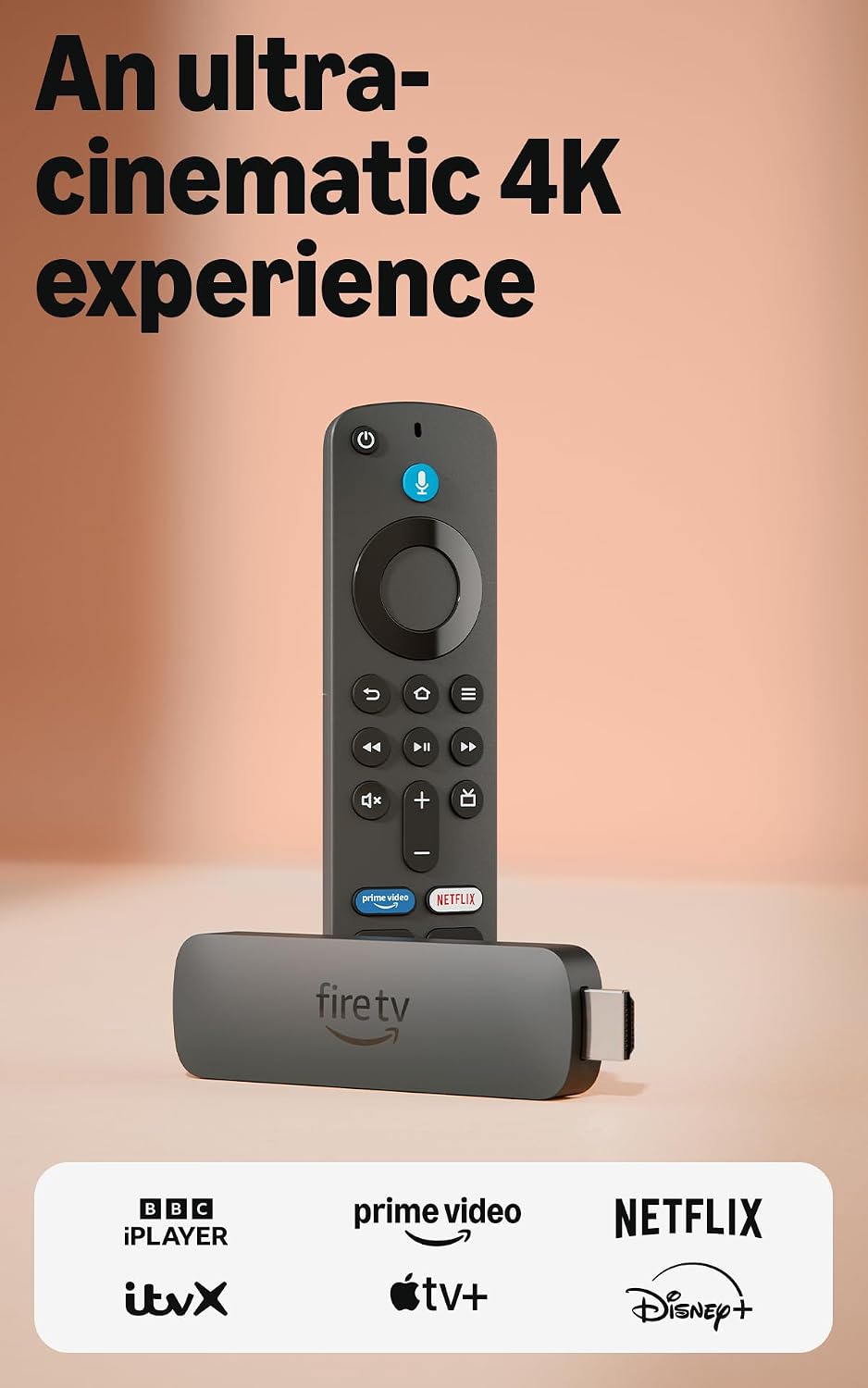
Signed in to the same Amazon account as your Echo Dot, a Fire TV Stick joins your Alexa setup, so you can use the voice remote or ask Alexa to find shows. It plugs into a spare HDMI port and brings iPlayer, ITVX, Netflix and Prime Video together with 4K, Dolby Vision and HDR10+ support.
Pros
- Makes an older TV feel fast and modern
- Alexa Voice Remote with TV power and volume buttons
- Wi-Fi 6 for steadier streaming
Cons
- The home screen pushes Amazon content and adverts, a common complaint in reviews
- Best picture needs a 4K HDR TV
- Storage fills up if you install lots of apps
Best for: anyone with a slow or older smart TV.
Skip it if: your TV already runs a fast, up-to-date smart platform.
How to choose Alexa devices
- Start with one Echo Dot in the room you use most, usually the kitchen, and add more only if you find yourself shouting across the house.
- Keep everything on one Amazon account so devices find each other without extra linking.
- Check running costs: Ring recordings and some music services need subscriptions.
- Think about screens: if you want to see who’s at the door, you’ll need your phone or an Echo with a display, not a Dot.
- Compare the range: our best Amazon devices UK guide puts the Kindle, Echo Dot, Fire TV Stick and Ring side by side, and our Black Friday buying guide covers which ones are worth watching in the sales.
FAQ
Do I need Amazon Prime to use an Echo Dot?
No. A free Amazon account is enough to set it up and use Alexa for timers, weather, radio, reminders and smart home control. Prime and other subscriptions add extras such as more music.
Can I set up an Echo Dot without the Alexa app?
The Alexa app is the standard way to set one up, because that’s where you connect it to Wi-Fi and your account. If someone doesn’t have a smartphone, a family member can set it up from their own phone using that person’s Amazon account.
Why is my Echo Dot light orange?
An orange light ring means the speaker is in setup mode or trying to connect. Follow the quick fixes above: restart it, check the Wi-Fi password and move it closer to the router during setup.
Is an Echo Dot a good gift for an older parent?
It can be, especially for radio, reminders and hands-free calls to family. Set it up for them before you hand it over. Our best Christmas gifts for dad UK guide has more ideas.
Our verdict
Setting up an Echo Dot comes down to plugging it in, adding it in the Alexa app and connecting it to your Wi-Fi, then taking a couple of minutes over privacy settings and a first routine. The Echo Dot (5th Gen) is the simplest place to start. Add the Ring Battery Video Doorbell 2K for door announcements and the Fire TV Stick 4K Plus for voice control on the TV, and you have a simple smart home without any wiring. Browse more gadgets in our Electronics category or the full WC shop.
More guides: see all our how-to guides.